> ## Documentation Index
> Fetch the complete documentation index at: https://reseller-docs.gfxtoolz.ai/llms.txt
> Use this file to discover all available pages before exploring further.
# Social links
> Put your Instagram, YouTube, Telegram and WhatsApp profiles on the panel your customers use.
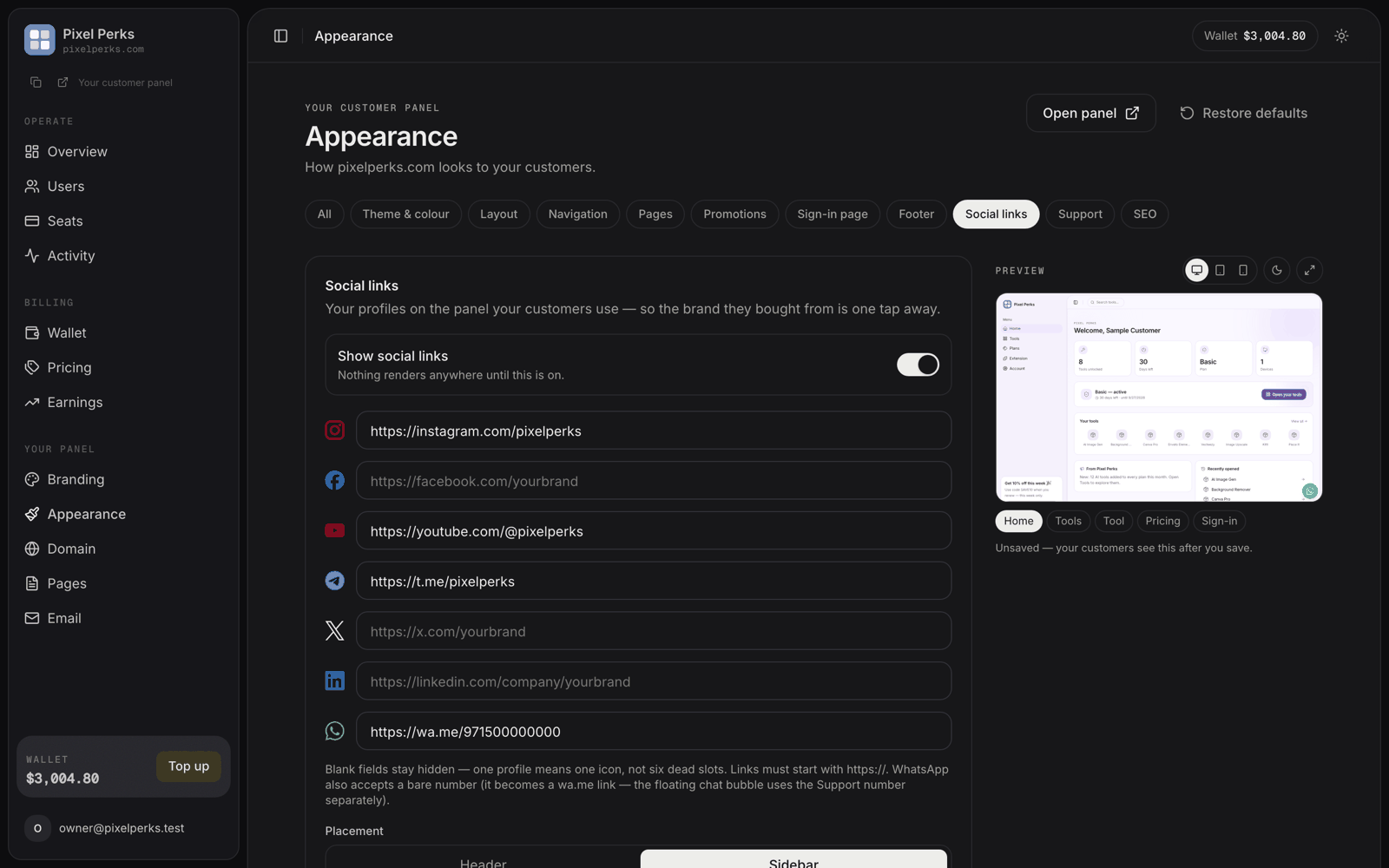
If you sell through Instagram, Telegram or WhatsApp communities, your panel used to be a dead end — customers landed there and had no way back to your brand.
**Appearance → Social links** puts your profiles on the panel itself.
## The networks
Instagram · Facebook · YouTube · X · LinkedIn · Telegram · WhatsApp — each an optional URL field.
**Blank fields render nothing.** One filled profile produces one icon, never six empty slots. Fill in only what you actually use.
| Rule | Detail |
| ------------------------------------ | ------------------------------------------------------------- |
| **Links must start with `https://`** | Anything else is dropped when you save. |
| **WhatsApp accepts a bare number** | Enter the number and it becomes a `wa.me` link automatically. |
| **Links open in a new tab** | Your customer does not lose the panel. |
The WhatsApp **social link** is separate from the floating chat bubble on your customer panel. The bubble uses the number from your [Support](/customize/appearance/support) settings — changing one does not change the other.
## Display options
| Option | Choices |
| --------------------- | ---------------------------------------------------------------------------------------------------- |
| **Show social links** | On / **Off** (default) — nothing renders anywhere until this is on |
| **Placement** | **Header** (top bar) or **Sidebar** (below the user card) |
| **Style** | **Icons only** or **Icons + labels** |
| **Colour** | **Brand colours** (each network's own colour) or **Neutral** (grey, picking up your accent on hover) |
| **Also show on** | **Sign-in page** and **Public & legal pages** — each toggled separately |
Labels collapse to icons automatically on phones and in a collapsed sidebar, so **Icons + labels** never breaks a narrow layout. On phone-width headers, at most four icons are shown to avoid crowding.
## The sign-in page
Enabling **Sign-in page** shows the strip below the sign-in form — visible to logged-out visitors. Your profiles become part of your public storefront rather than something only paying customers see.
If you are running paid traffic to your panel, turn this on. Someone who is not ready to buy today can still follow you, and you keep the audience you paid for.
## Previewing before you publish
The live preview beside the controls updates as you type, and you can switch it between desktop, tablet and phone, and between light and dark.
Nothing your customers see changes until you **save** — the preview is marked *"Unsaved — your customers see this after you save."*